









 Dynamic Language Tools
 Translate
 Listen
 Look up


Transliteration
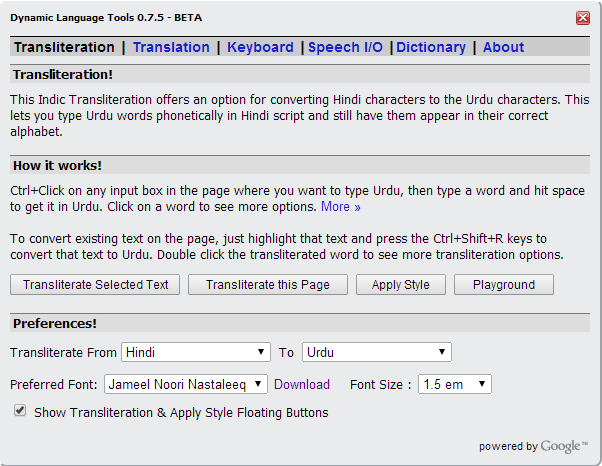
The transliteration page provides the following features.
- Writing in your language
- First make sure the right language pair is selected in the From and To drop-downs in the Preferences section. Then close the Preferences dialog, and Ctrl+Click (hold down the control key while clicking) in any text area on the page. This activates Transliteration Mode, and you will see your language icon in the text box background. Now type in your source language and it is transliterated to the target language as you type. For example, with From set to "English" and To set to "Urdu", typing the Roman text “Ye to bhat shandar khabar hai.” displays “یہ تو بہت شاندار خبر ہے.”. To turn Transliteration Mode off, Ctrl+Click in the same text box again.
- Transliterate Selected Text
- Highlight text on the page and click the "Transliterate Selected Text" button. A progress bar shows until it is done. This is ideal for converting Roman script content like comments, poems and news on any website.
- Transliterate this Page
- Works like "Transliterate Selected Text", but applies to the complete page instead of the selected text.
- Apply Style
- Applies the font and style of your choice to the selected text. This is handy when you are reading Urdu content but do not like the website’s default font. BBC Urdu, for example, uses "Urdu Naskh Asiatype", and with this feature you can switch the selected text to a font like "Jameel Noori Nastaleeq" for a better reading experience.
- Transliteration Playground
- A window where you can try the transliteration feature, and easily transliterate and copy/paste text. It is ideal when you want transliteration support in a non-web application: copy the content into the playground, tweak it, and paste it back into your source document.