





Taskbar Management Made Easy
A freeware Taskbar extension application for the Microsoft Windows ®. This small utility allows you to drag and drop applications button on the Windows Taskbar on Windows-XP, or can create groups of running applications buttons. You can also hide or minimize the running windows to System Tray, and you can make them transparent or can set them to be always be on top.

Game Features

Hide Desktop Icons
With this application unique Hide Desktop Icons feature, you can truly enjoy the beauty of your favourite wallpapers without all these desktop icons clutter. The good thing is that the icons are still there, and you can toggle the visibility with just one click.

Always on Top
If you want a particular Window to be always on top, then to do this right click on the Taskbar button of that Application and click "Always on Top " menu option. To undo this, repeat the same procedure and it will toggle the "Always on Top" status.

Minimize Application to System Tray
To minimize any running application window to system tray, simply right click on the Taskbar button of that Application and click the "Minimize to Tray " menu option. To restore this application window, just double click its corresponding icon in the system tray area.

Hide Application
You can also hide any of the running application. For this right click on the Taskbar button of that Application and click "Hide" menu option. To view the existing hidden windows, right click the TaskbarExt system tray icon and click "Hidden Windows..." menu option.

Taskbar Drag & Drop - Windows-XP
Using this utility, now on Windows XP, you can easily drag & drop your applications button in the Taskbar to rearrange the order. Similarly you can also drag and drop the grouped buttons using this same technique.

Transparent Taskbar - Windows-XP
Using this utility, now on Windows XP, you can also control the transparency of your Taskbar (so that you can see the desktop background image through it).
Screenshots
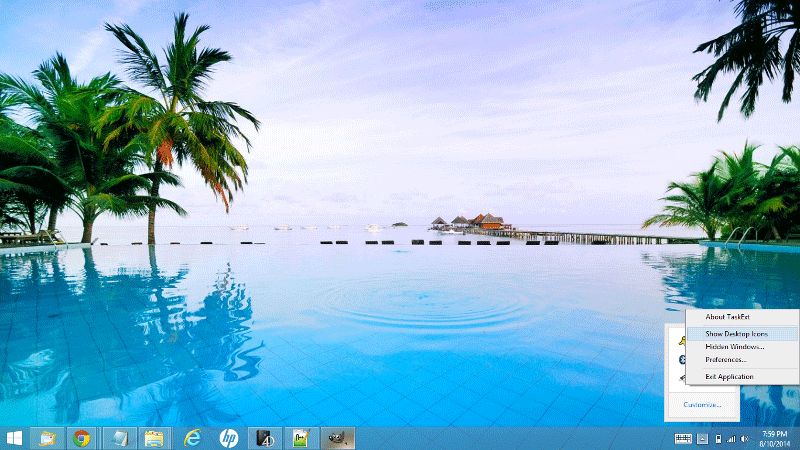
Clean Desktop
Make your desktop look clean, and enjoy wallpapers by hiding your Desktop icons.

Handy Windows Feature
When running shows handy functions in the System Menu of any application like Minimize to Tray, Hide, Always on Top, Make Transparent, etc.
Download Statistics

Feedback & Comments